Help for Web Camera Security System v 1.0

Introduction

WCSS is an affordable and effective remote monitoring solution for detecting motion and recording video automatically.

Basic Operation

To set up your cam to record while you are away follow these steps.

  1. Load the Application
  2. Choose a compression codec for your AVI's
  3. Set the Delay timer with the amount of seconds to delay before the motion sensor is active.
  4. Set the Capture Every box to the amount of seconds you wish to capture each time motion is detected.
  5. Scroll the tolerance bar slowly from left to right until all red boxes disappear.
  6. Check the box to Turn Security On / Off

E-mail Alerts

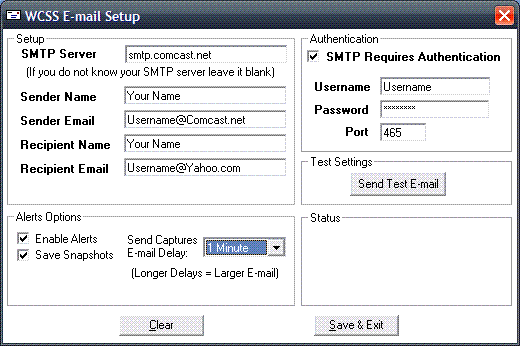
To enable e-mail alerts. Click Program Options and then E-mail Alerts in the menu at the top of the program. Specify your outgoing e-mail (SMTP) server. If you don't know your SMTP server, you can try leaving this blank and the program will attempt to automatically locate the server.


Sender Name Your First Name
Sender E-mail Your e-mail address
Receiver Name Name of person receiving the e-mail
Receiver Address E-mail address of person receiving the e-mail
Requires Authentication Check this box if your SMTP server requires it
Username SMTP Username (usually your ISP login username)
Password SMTP Password (usually your ISP password)
Enable Alerts Enable or Disable the Sending of Alerts
Save Snapshots Specify whether you wish to keep a copy of the snapshot locally
Send Captures E-mail Delay Send Captures E-mail delay allows the user to specify how long the program should wait before creating an email of captured photos. The longer the wait, the larger in size the e-mail will be.
Stealth Mode

This feature hides the recording options and transforms it to appear to be just a web cam viewer.
To activate stealth mode, press Control + Z

Super Stealth Mode

This feature hides the entire screen but still allows motion detection and recording to function.
To toggle super stealth mode press Control + Alt + Z

Menu Items (From Left to Right)

Camera Camera Options Program Options
Camera On/Off Video Source Capture
Security On/Off Compression Options   Capture Until User Stops
  Video Format   Still Images
  Audio Format Display
      Draw Boxes
      Stealth Mode
    Detection  
      Draw Boxes Amount
    Save Options  
    E-mail Options  
    General Options  
      Load at Windows Start
      Show Beginner Warning
      Allow to Load in Stealth
      Process Timer
    View Captures  


Camera
    Camera On / Off Turns the Camera On or Off
    Security On / Off Turns On / Off the recording of video when motion is detected.
Camera Options
    Video Source Allows you to choose what web cam you would like to use.
    Compression Options Gives you the ability to save small video files by compressing them.
    Video Format Specifys the size (resolution) of the web cam window, and the Pixel Depth.
    Audio Format Gives options for format of the audio and quality of the audio in the file saved.
Program Options
Capture
    Capture Until User Stops
This gives the user the option of recording video once motion is detected until the program is stopped by pressing the Escape key.
    Capture Still Images Save still images to the hard drive. This can be done in a timed interval or whenever motion is detected. JPEG Quality specifies the quality of the image. Higher quality will result in a larger image size.
Display
 
Draw Boxes Toggles between showing the red boxes or not showing them. Note: Choosing to not display the red boxes may actually increase the speed of recognition and overall performance since less needs to be displayed in each frame.
    Stealth Mode Toggles between transforming the program into a Webcam Viewer or the Security Camera.
Detection
    Draw Boxes Amount This provides an option to tell the program how many red boxes should appear on the screen before motion is considered detected.
Save Option Provides user with text box to specify where to save the captured files. It also allows them to choose if they want to save each capture in it's own folder by date.
E-mail Options

Allows user to specify their SMTP settings and whether or not to enable alerts. Send Captures E-mail delay allows the user to specify how long the program should wait before creating an email of captured photos. The longer the wait, the larger in size the e-mail will be.

General Options  
  Load at Windows Start When this is checked WCSS will load at the start of windows
  Show Beginner Warning Message This is the warning message that reminds the user to load a compression codec. You should uncheck this option if you already understand the warning.
  Allow Program to Load in Stealth This will make the program invisble when it starts up. To unhide the program press Control + Alt + Z. Uncheck this if you don't want it to load in a hidden state.
  Process Timer Setting this will control how fast your processor examines and displays the frames of video. The slowest is 1/100th of a second. The larger number you input for this, the less your processor will need to be devoted to the program. The higher this is set at, the more your processor will be devoted to the program and it's image processing. 30 is the default setting, you can adjust this to your CPU needs.
View Capture Folder Shows the folder where the files have been captured.
 

How Do I Register?

Registration is a one time process and is one easy payment of $9.95
To register click the "Help" link in the top menu of the program, click the "Register" menu entry and then the "Buy Now" image link. You will automatically receive your unlock key immediately.

How many computers can I operate this software on?

The license permits you to operate this software on one computer. If you need to use this on more computers please buy the appropriate licensing.

What kind of help do you provide?

We provide forums and e-mail support for your convenience. We will do our best to keep you happy. Check the homepage for more information as well as the forums.

Do you offer any kind of updates for this software?

Version 1 updates will be provided free of charge. If you have purchased version 1.0, version 2.0.0 will be offered free of charge.

What is your return policy?

The software is offered as shareware. We stress that you please try our software before you decide to buy it. If you find it to work on all of your computers the way you desire, then please buy it. If for at any reason you become unsatisfied with your purchase, we offer a 30 day money back guarantee.

Are you ready? Version 2.0 is being offered for FREE to those who purchase this product. Version 2 will include Direct X technology and a new sleek design. As a customer of Web Camera Security System, we will inform you of updates by e-mail.

For Support Please Contact:
SecureWebCamera@Dreamstruct.com

Support Forum:
http://www.Dreamstruct.com/Products/WebCamSecuritySystem/Forum/


Web Camera Security System®
Copyright © 2005 Dreamstruct Designs LLC
